What is an issue?
An issue is the core unit of work in Ouraboard — a task, bug, feature request, or epic. Issues
live inside a project and appear on boards and in the backlog. Every issue has a unique slug
(example: PRJ-42) that can be referenced in
commit messages and pull requests to link code changes automatically.
Create an issue
From the board
- Click + in any column header.
- The new issue form opens. Enter a title and any other fields.
- Click Create — the issue card appears in that column.
From the backlog
- Open Backlog from the sidebar.
- Click New issue at the top of the backlog list.
- Fill in the form and confirm.
From the top bar
- Click New issue in the top navigation bar (available from any page).
- Select the project, fill in the form, and confirm.
Only Title is required. All other fields are optional and can be filled in later.
Issue fields
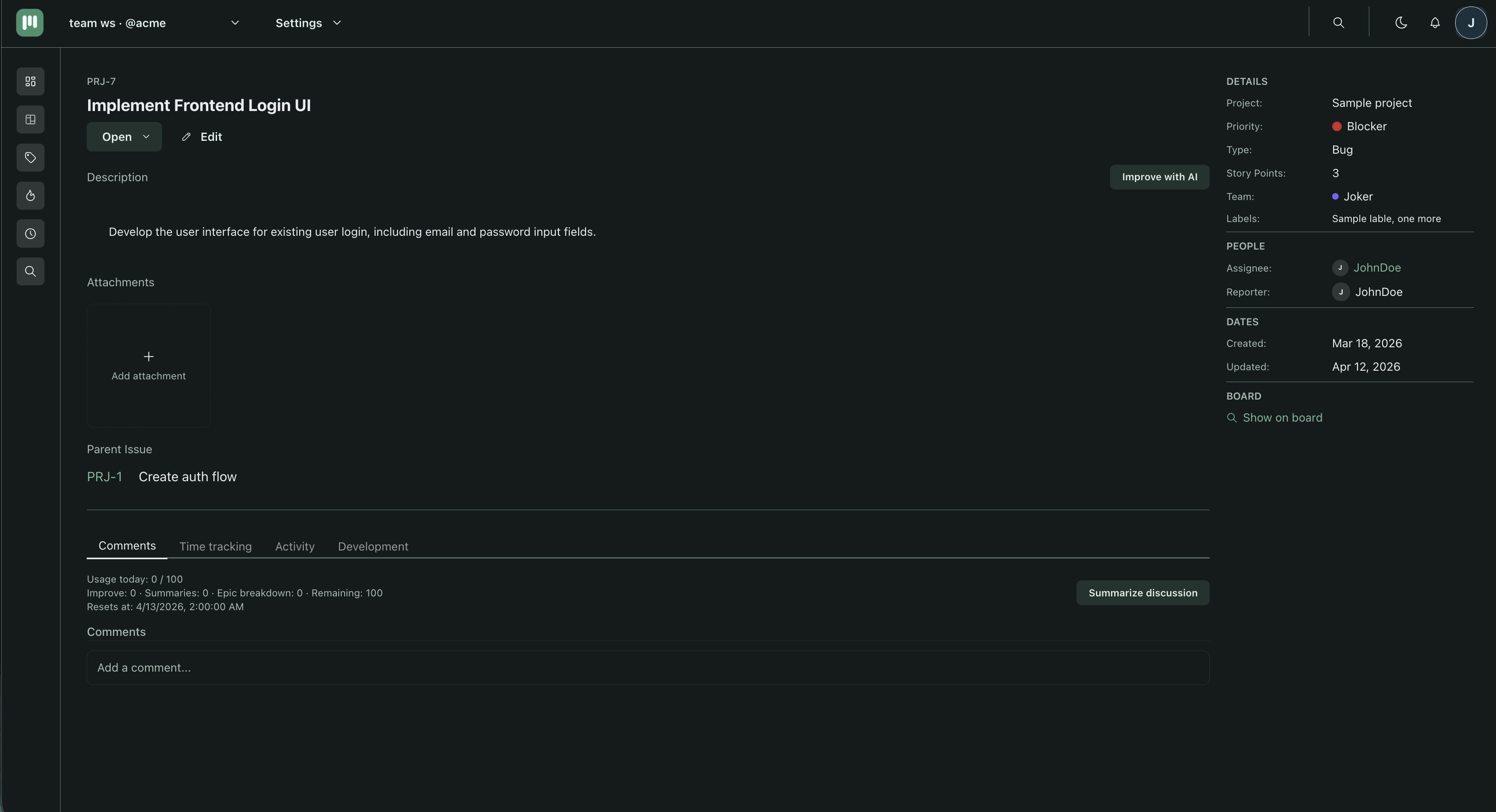
Fields appear in the issue form and in the sidebar of the issue detail page.
| Field | Description |
|---|---|
| Title | Required. Short, action-oriented summary (example: Fix login redirect on mobile). |
| Description | Markdown-supported body. Use AI Improve to expand a rough draft into a clearer description. |
| Type | Categorises the issue (Bug, Feature, Task, Epic, etc.). Types are configurable in Workspace Settings → Issue types. |
| Assignee | One workspace member responsible for the issue. |
| Priority | Urgent, High, Medium, Low, or No priority. Priorities are configurable in Workspace Settings → Priorities. |
| Labels | Multiple labels can be applied. Labels are configurable in Workspace Settings → Labels. |
| Project | The project the issue belongs to. Cannot be changed to a different project after creation. |
| Team | Associates the issue with a team. Available on Team plan workspaces. See Teams. |
| Story points | Numeric effort estimate. Used for sprint planning on Scrum boards. |
| Status / Column | Controlled by which board column the issue is in. Moving the card across columns updates the status automatically. |
Edit an issue
- Click any issue card on the board or any issue row in the backlog to open it.
- All fields are editable inline — click a field to edit it.
- Changes save automatically. There is no separate Save button.
The issue slug (example: PRJ-42) is assigned
automatically and cannot be changed.
Move an issue
Between columns on the board
- Drag the issue card from one column to another.
- Or open the issue and change the Status field in the sidebar.
Between the backlog and the board
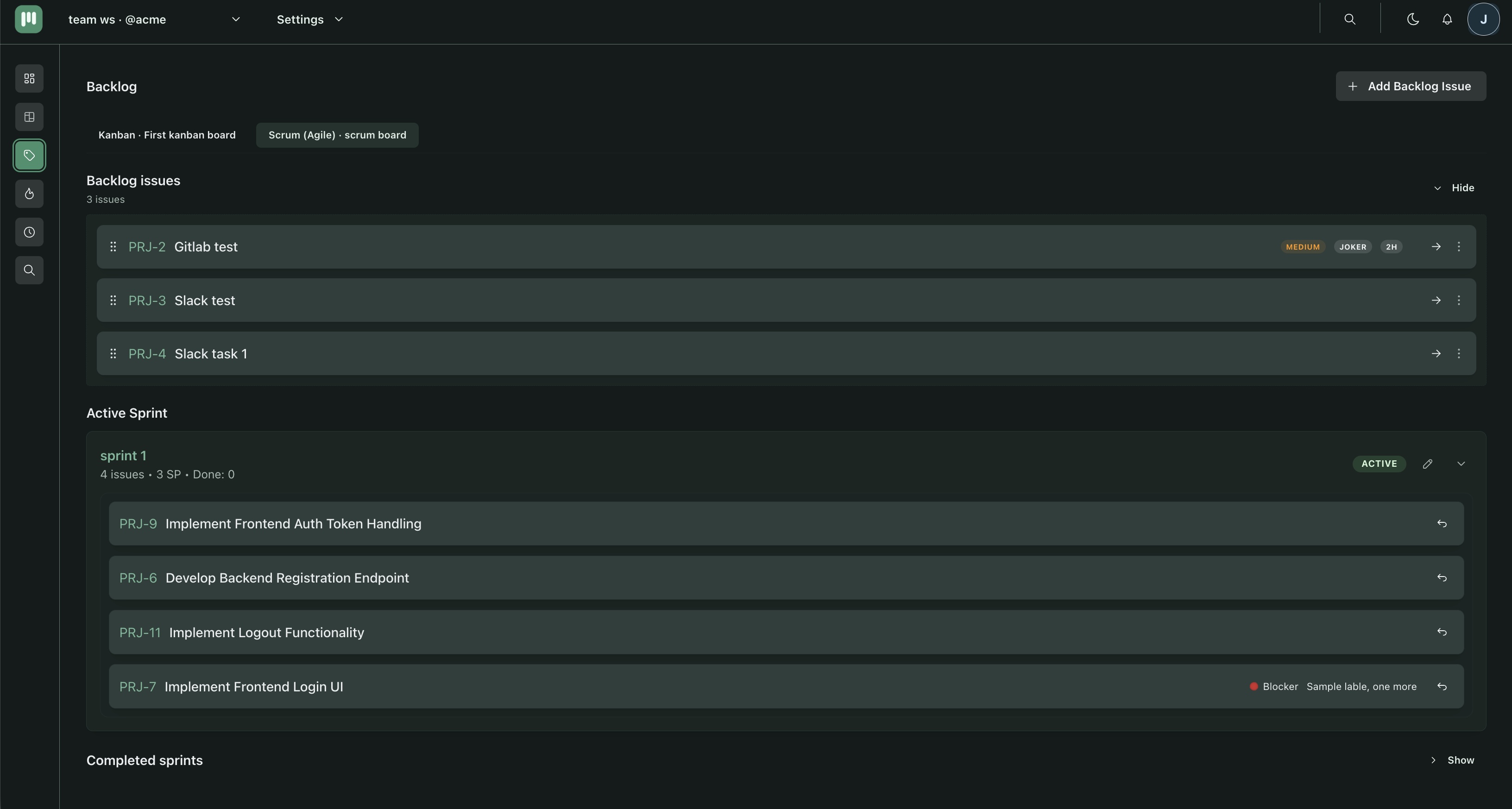
Issues in the backlog are not yet on any board column. Use quick actions to move them.
- Backlog → board: hover over an issue row in the backlog and click Move to board. The issue moves to the intake column of the board.
- Board → backlog: open the issue context menu on the board card and select Move to backlog.
You can also drag issues between the backlog list and the board section on the Backlog page.
Epics and child issues
An Epic is an issue of type Epic. Epics can have child issues linked to them.
- To add a child issue manually: open the Epic and click Add child issue.
- To generate child issues automatically: open the Epic and click Split Epic with AI. Review the drafts, include or exclude items, then create. See AI features.
- Child issues appear in the Epic's detail page and behave like regular issues on the board.
Standard issue types (Bug, Feature, Task) do not have a parent–child hierarchy.
Delete an issue
- Open the issue detail page.
- Click the … menu in the top-right corner.
- Select Delete and confirm.
Deletion is permanent. If you want to keep the history, move the issue to a Done column or close it instead.
What's next
- Boards — set up columns, manage board workflow, and choose between Kanban and Scrum.
- AI features — improve descriptions, summarize discussions, and split epics.
- GitHub integration — link commits and pull requests to issues automatically.