What is a board?
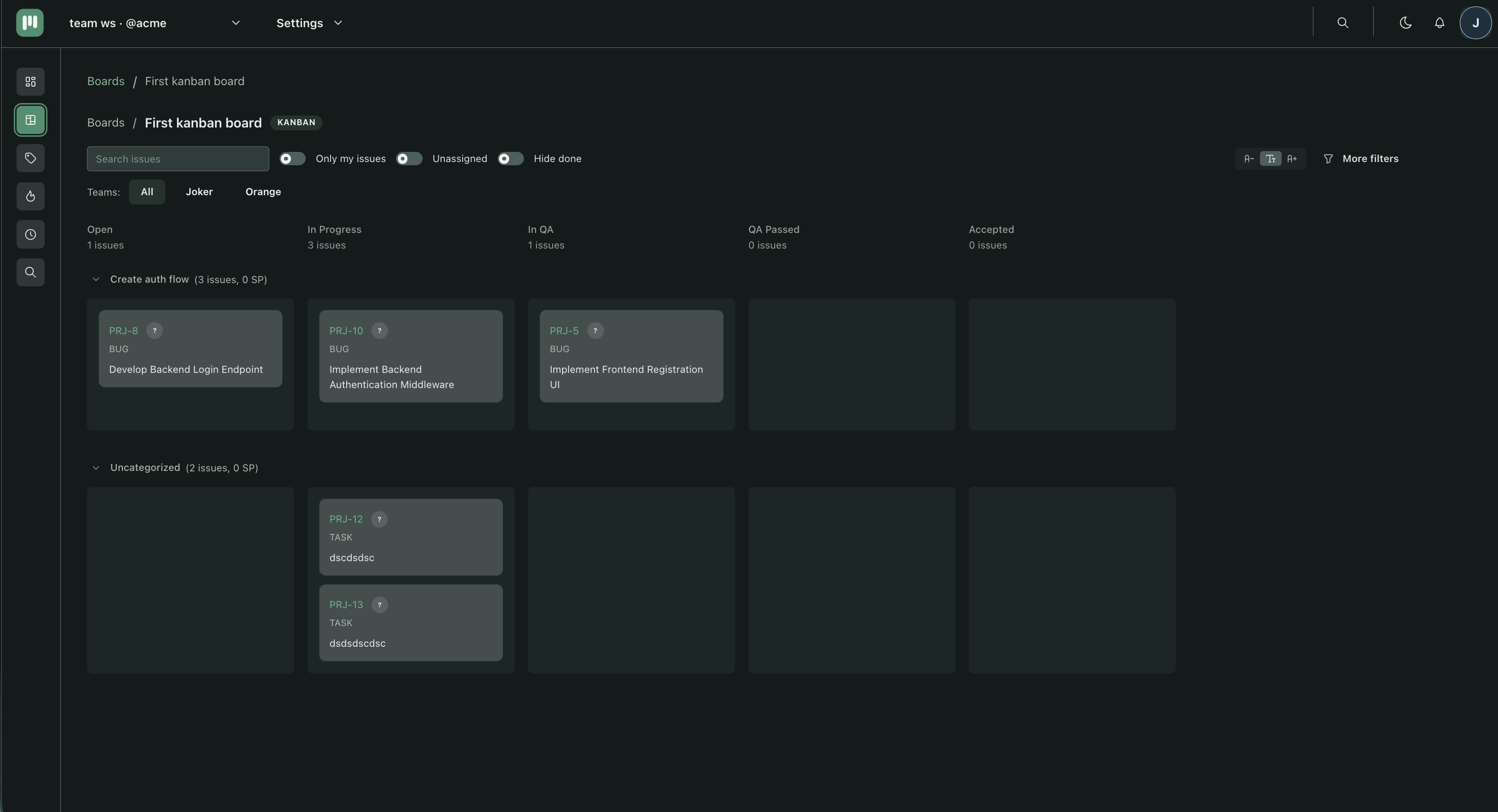
A board is where issues move through your workflow. Each board belongs to a project and has columns that represent stages of work (example: To do → In progress → Done). Issues are represented as cards that you drag between columns.
There are two board types: Kanban for continuous flow and Scrum for time-boxed sprints. The type is chosen at creation and cannot be changed later.
Kanban vs Scrum
| Kanban | Scrum (Agile) | |
|---|---|---|
| Best for | Continuous delivery, support queues, ongoing work | Feature development in fixed time-boxes |
| Work unit | Issues flow through columns at any time | Issues are planned into sprints (1–4 weeks) |
| Sprints | None | Create, start, and complete sprints |
| Backlog | Issues move directly to the intake column | Issues are moved from backlog into a sprint |
| Story points | Optional | Used for sprint capacity planning |
Not sure which to choose? Start with Kanban. It is simpler to set up and you can always create a separate Scrum board later.
Create a board
- Open a project in the sidebar.
- Click New board.
- Enter a board name.
- Select board type: Kanban or Scrum (Agile).
- Optionally copy columns from an existing board.
- Confirm — the board opens with default columns ready.
Board type cannot be changed after creation.
Manage columns
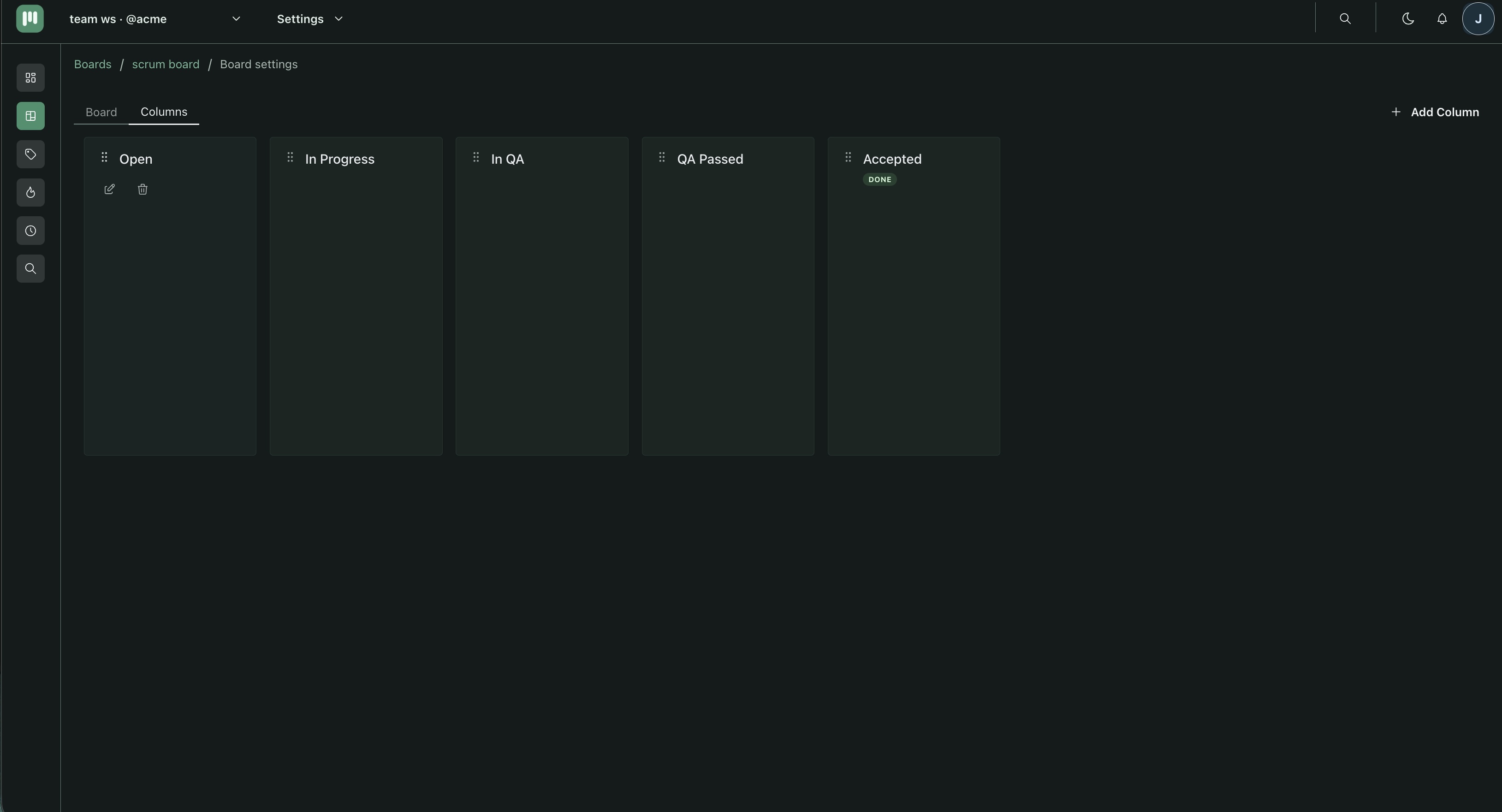
Columns represent stages of work. All boards in a workspace share the same column definitions, managed in Workspace Settings → Board columns.
Add a column
- Open Workspace Settings → Board columns.
- Click Add column.
- Enter a name and confirm.
Reorder columns
- Open Workspace Settings → Board columns.
- Drag a column row using the handle on the left to change its position.
Delete a column
- Open Workspace Settings → Board columns.
- Click the delete icon next to the column and confirm.
Deleting a column removes it from all boards in the workspace. Issues in that column move to the backlog.
Intake column
The intake column is the first column on a Kanban board. When you move an issue from the backlog to the board, it lands in the intake column. The intake column is shown in the backlog view so you can see what is already in progress.
The intake column is always the leftmost column. Reordering columns in settings changes which column acts as intake.
Sprints (Scrum boards only)
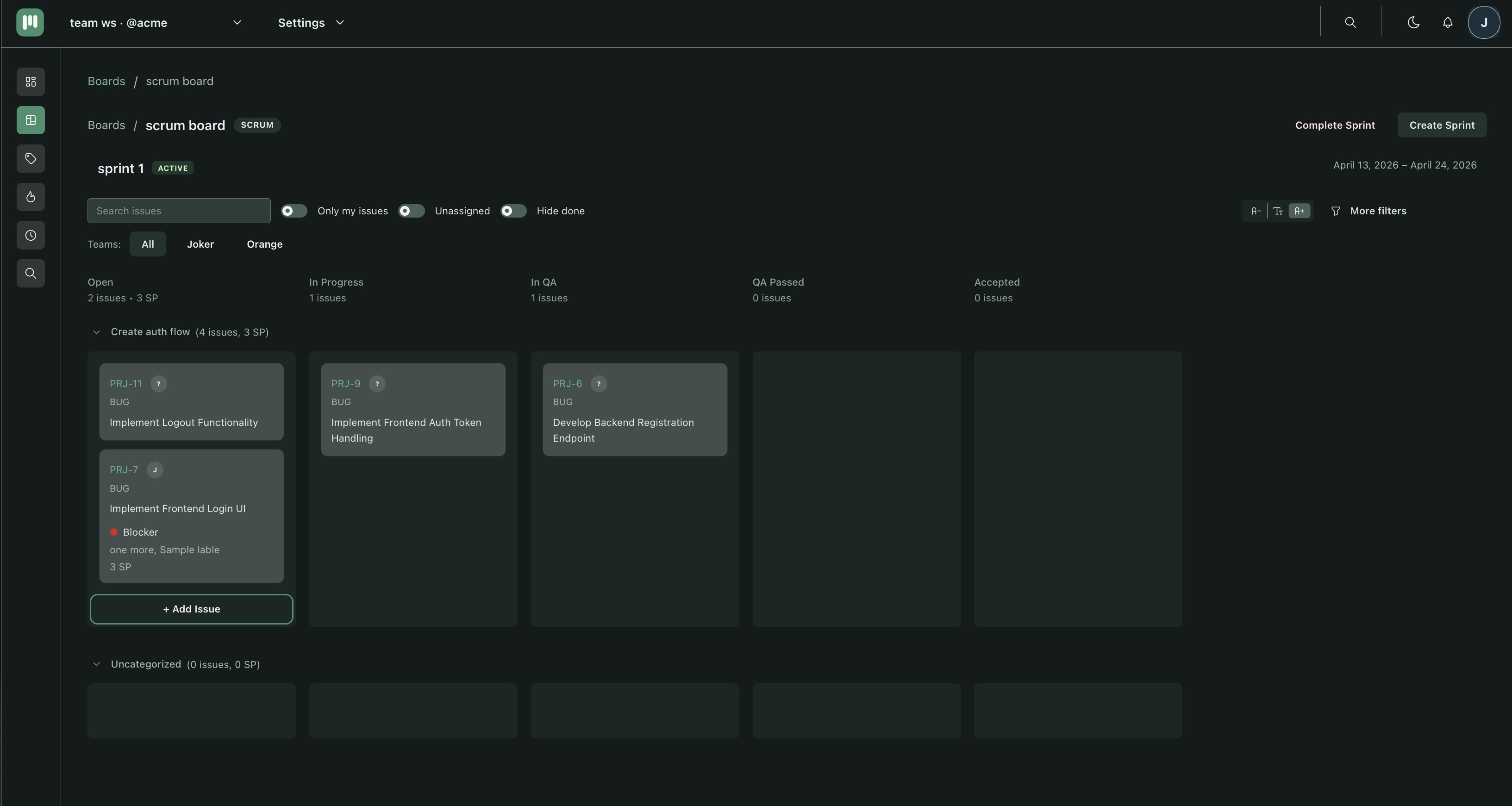
Scrum boards use sprints — time-boxed periods where a fixed set of issues is worked on. Only one sprint can be active at a time per board.
Create a sprint
- Open the Scrum board.
- Click Create sprint.
- Enter a sprint name and optionally set start and end dates.
- Confirm — the sprint appears as a draft above the backlog.
Add issues to a sprint
- Open the Backlog page for the board.
- Drag issues from the backlog list into the sprint section, or use the quick action Move to sprint on hover.
Start a sprint
- Once issues are added, click Start sprint on the sprint panel.
- Confirm dates — the sprint becomes active and issues appear on the board.
Complete a sprint
- Click Complete sprint in the sprint header on the board.
- Choose what to do with unfinished issues: move to backlog or move to the next sprint.
- Confirm — the sprint closes and a new sprint can be started.
Archive and restore a board
Archiving a board hides it from the active boards list but preserves all issues and history.
Archive
- Open Project → Boards.
- Click the … menu next to the board and select Archive.
Restore
- Open Project → Boards and switch to the Archived filter.
- Click Restore next to the board.
Only workspace admins and owners can archive or restore boards.
What's next
- Issues — create, edit, and move issues on your board.
- Permissions — who can create and archive boards.
- GitHub integration — automatically link commits and pull requests to issues on your board.