What AI can do
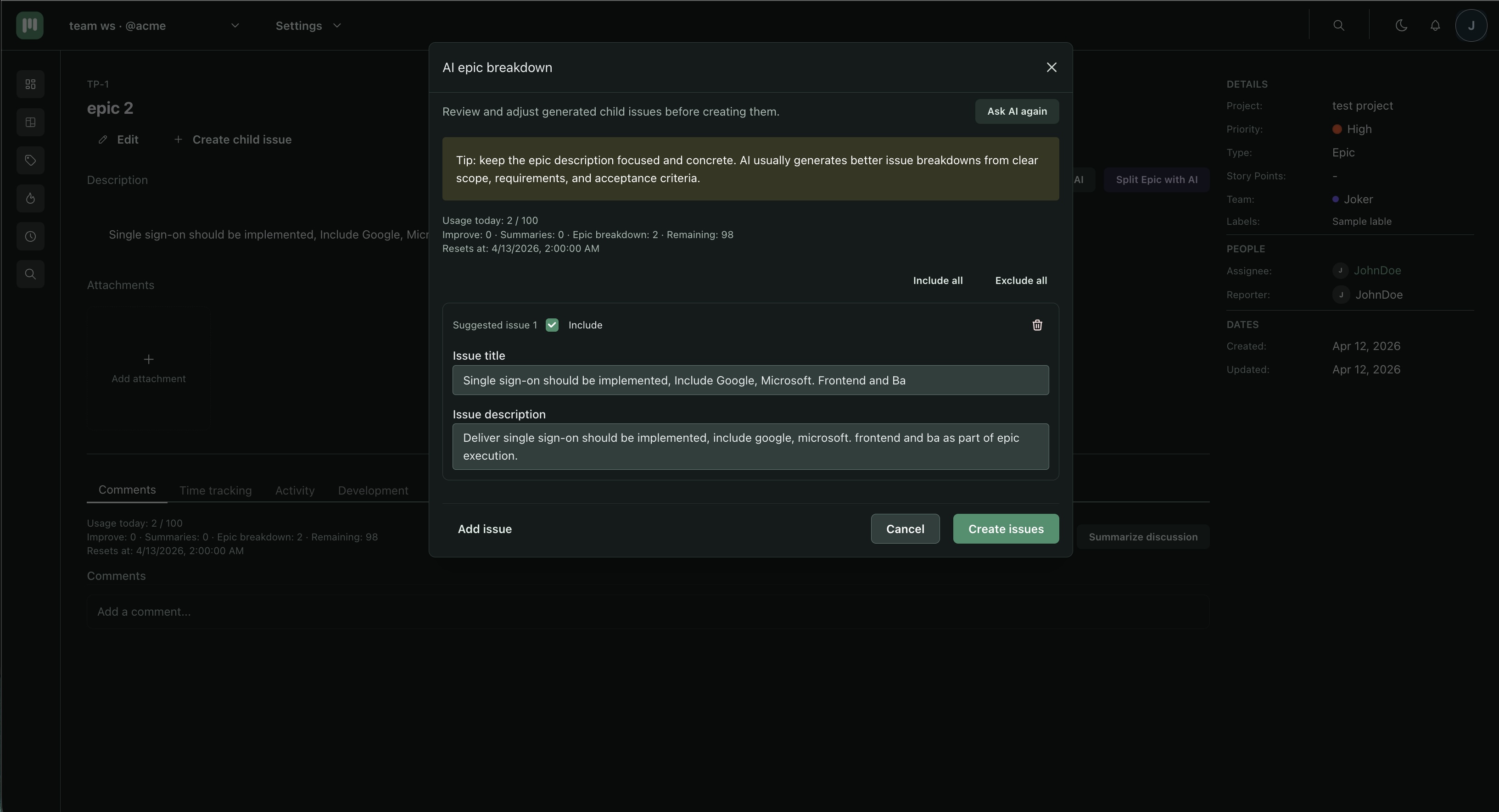
- Improve Description — rewrites a rough issue description into a clear, structured summary.
- Summarize Discussion — condenses a long comment thread into a short summary.
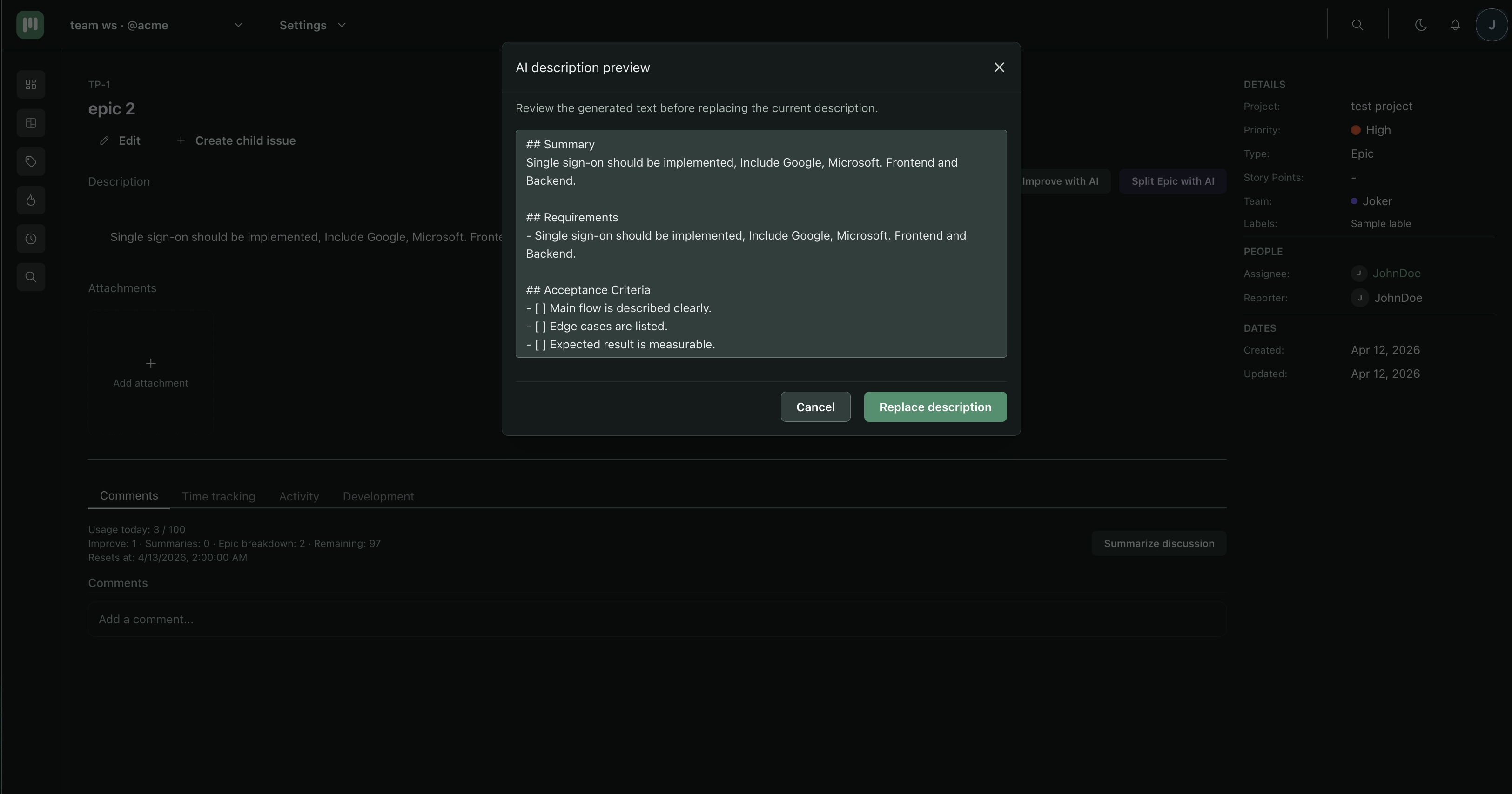
- Split Epic — generates a list of child issue drafts from an Epic's title and description.
- Generate Starter Backlog — turns a short prompt into a starter set of issues for a new project, optionally grouped under epics.
AI is available on all plans, with a usage quota that increases with your plan. Every member can use AI by default; on the Team plan, admins can restrict access to specific members with the AI_USE permission. See Permissions.
Improve Description
Turns a short or rough description into a well-structured one. Best used when you have a starting point but want it to be clearer before sharing with the team.
Example
Before
login is broken on mobile. users cant get in. needs fixing asap
After (AI improved)
Problem: Users on mobile devices are unable to log in. The login form
submits but the session is not created and no error is shown.
Steps to reproduce: Open the app on a mobile browser, enter valid
credentials, tap Log in — the page refreshes but the user remains on the login screen.
Expected: User is redirected to the dashboard after successful login.
Priority: High — blocking all mobile users.
How to use
- Open an issue that has a non-empty description.
- Click Improve with AI below the description field.
- Review the suggested text in the preview modal.
- Edit the preview if needed.
- Click Apply to update the description.
The original description is not changed until you apply. If the result is not useful, close the modal to discard it.
Summarize Discussion
Condenses a long comment thread into a short paragraph. Useful when joining an issue mid-conversation or preparing a status update.
Example
Before (12 comments)
Discussion threads covering root cause investigation, two proposed fixes, a decision to go with option B, a blocker on staging, and a final sign-off...
After (AI summary)
The team identified a race condition in the auth token refresh logic. Option B (debounced retry with a 200 ms delay) was chosen over Option A. A staging blocker was resolved by updating the environment variable. The fix has been reviewed and approved for deployment.
How to use
- Open an issue with comments or activity.
- Click Summarize discussion in the discussion section.
- Review the generated summary.
- Copy the summary to clipboard if needed.
Split Epic
Generates a set of child issue drafts from an Epic's description. Best used when you have a well-defined epic and want a starting point for breaking it down — not for vague or one-line epics.
Example
Epic description
Implement user notification preferences. Users should be able to choose which events trigger email notifications (issue assigned, mentioned, status changed) and which are silent. Settings should persist per user, not per workspace.
Generated child issues
- Design notification preferences UI (settings page)
- Add notification_preferences column to users table
- API endpoint: GET/PUT /users/me/notification-preferences
- Implement per-event email suppression logic
- Write tests for notification preference persistence
How to use
- Open an issue of type Epic.
- Click Split Epic with AI.
- In the modal, click Ask AI to generate child issue drafts.
- Review each draft:
- Edit title or description inline.
- Toggle Include to keep or exclude individual items.
- Add extra items manually if needed.
- Click Create issues — selected drafts are created as child issues under the epic.
Tip: Better epic descriptions produce better splits. Include scope, requirements, and acceptance criteria rather than just a title.
Generate Starter Backlog
Bootstraps a brand-new project with a starter set of issues from a short prompt describing what you're building. Best used right after creating a project, when the backlog is empty and you want a structured starting point instead of a blank page.
How to use
- Open the Backlog and choose Generate with AI.
- Describe the project or feature you want to plan in the context field.
- Pick a generation mode:
- Quick issues — a flat starter backlog for the fastest setup.
- Backlog with epics — epics with child issues grouped underneath (when epics are available).
- Generate, review the drafts, and create them. New issues are added to your project's backlog.
Limits and plan availability
| Feature | Free | Premium | Team |
|---|---|---|---|
| Improve Description | Included | Included | Included |
| Summarize Discussion | Included | Included | Included |
| Split Epic | Included | Included | Included |
| Generate Starter Backlog | Included | Included | Included |
| Usage quota (all AI actions combined) | 3 / month | 30 / month | 100 / day |
- All AI actions draw from a single workspace quota (Free: 3/month, Premium: 30/month, Team: 100/day). The current usage and reset time are shown in the AI panel on any issue page.
- When the quota is reached, AI actions are paused until the quota resets.
- Large descriptions or long discussion threads may be truncated before being sent to the AI. If a description is unusually long, the AI may return a partial result.
- Every member can use AI by default. On the Team plan, admins can restrict access to specific members using the AI_USE permission override. See Permissions.
When AI doesn't help
- Improve Description — if the description is a single word or contains no useful context, the AI has nothing to work with. Write at least a sentence describing the problem first.
- Split Epic — vague titles like "Refactor auth" without a description will produce generic or low-quality child issues. Add scope and requirements to the epic description before splitting.
- Summarize Discussion — if there are fewer than 3 or 4 comments, a summary adds little value over reading the thread directly.
Privacy
Issue content (titles, descriptions, and comments) is sent to the AI provider to generate results. Do not use AI features on issues containing sensitive personal data or credentials. See the Privacy Policy for full data handling details.