Plan comparison
Choose the plan that fits your team's size and workflow needs.
| Feature | Free | Premium | Team |
|---|---|---|---|
| Members per workspace | Up to 3 | Up to 10 | Up to 25 |
| Boards per workspace | Up to 2 | Up to 10 | Unlimited |
| Projects per workspace | Unlimited | Unlimited | Unlimited |
| Issues per workspace | Unlimited | Unlimited | Unlimited |
| Git integrations (GitHub, GitLab, Bitbucket) | — | — | ✓ |
| Slack integration | — | — | ✓ |
| Teams | — | — | ✓ |
| AI features | 3 / month | 30 / month | 100 / day |
| Priority support | — | — | ✓ |
Limits shown are typical defaults. Open Workspace Settings → Billing to see the exact limits active on your current plan.
Which plan do I need?
- Solo or a team of up to 3 exploring the tool: start on Free. No credit card required.
- Need more boards or a larger team: upgrade to Premium.
- Need Git integrations, Slack notifications, Teams, higher AI limits, or have more than 10 members: upgrade to Team.
Upgrade
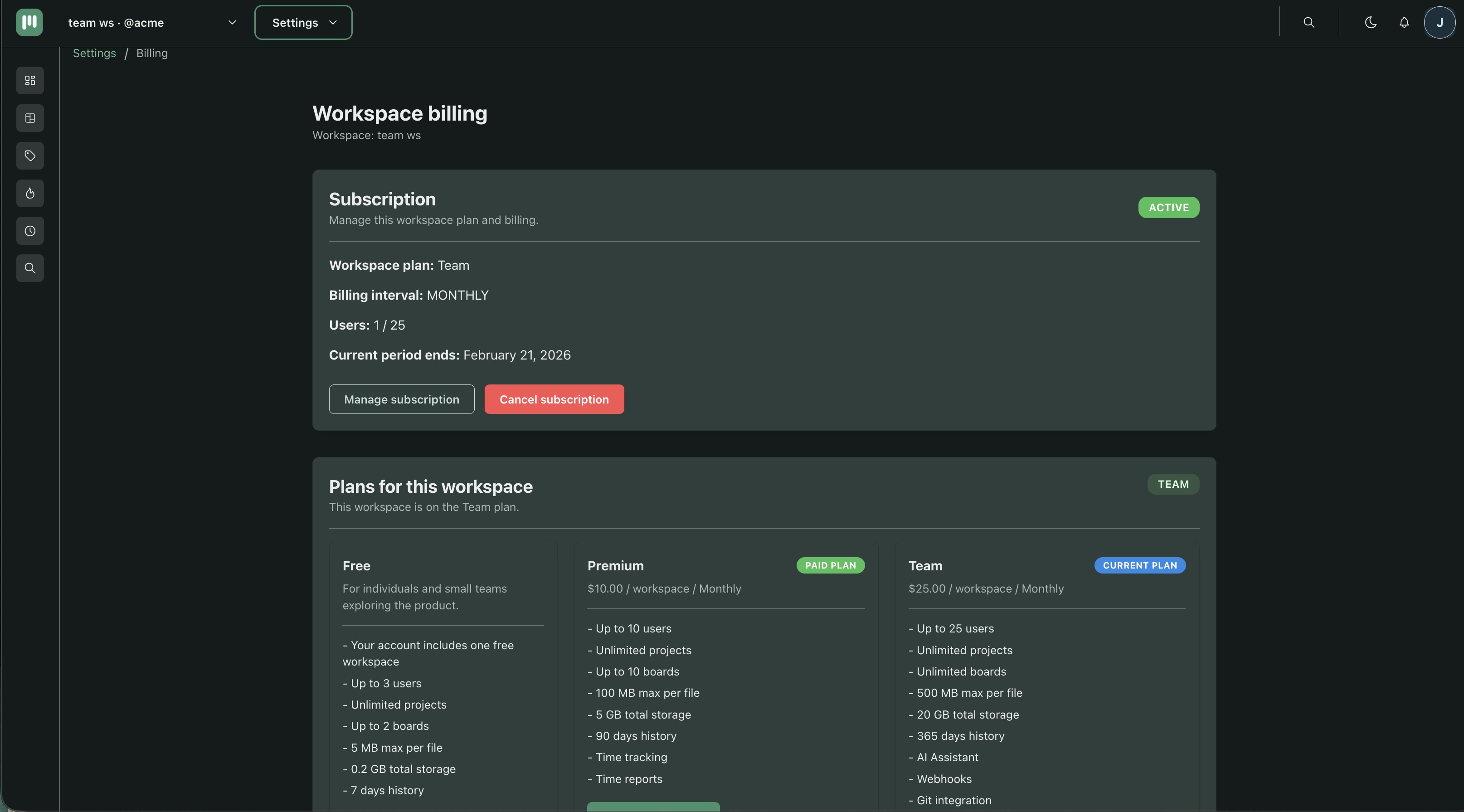
- Open Workspace Settings → Billing.
- Select the target plan.
- Complete the secure Stripe checkout.
- Return to the workspace — the new plan is active immediately.
Downgrade
You can downgrade from Team → Premium → Free at any time.
- The downgrade takes effect at the end of your current billing cycle.
- If your current usage (members, boards, issues) exceeds the lower plan's limits, the workspace enters restricted mode — write actions are paused until you reduce usage or re-upgrade.
- All your data is preserved. Nothing is deleted automatically.
- AI action history is retained. New AI actions pause once the workspace's AI quota is used up or while the workspace is in restricted mode.
Limit and lock behavior
When a plan limit is exceeded the workspace may enter a locked or restricted state.
- Read access stays available — you can still view all issues and boards.
- Write actions (creating issues, editing boards) are paused until the workspace is back within limits.
- To identify which limit was reached, open Workspace Settings → Billing.
- Upgrade or reduce usage (archive boards, remove members) to restore full access.
Canceling
You can cancel your subscription at any time from Workspace Settings → Billing. Cancellation takes effect at the end of the current billing cycle.
- Your workspace data is retained after cancellation.
- The workspace reverts to Free plan limits at the end of the cycle.
- For refund requests, contact contact@ouraboard.app.
See Terms for the full cancellation policy.
Frequently asked questions
Is billing per seat or per workspace?
Billing is per workspace. Each workspace has its own plan and subscription. Adding members does not increase your bill directly — member limits are enforced by your plan tier.
Can I change plans mid-billing-cycle?
Yes. Upgrades apply immediately and are prorated. Downgrades take effect at the end of the current cycle.
What happens to my data if I exceed Free limits?
Your data is never deleted due to plan limits. The workspace enters restricted mode until you upgrade or bring usage back within limits.
Where do I find my invoices?
Open Workspace Settings → Billing and click Manage billing. This opens the Stripe billing portal where you can download past invoices and update payment details.
Can I have multiple workspaces on different plans?
Yes. Each workspace has an independent plan. One workspace can be on Free while another is on Team.